1
/
of
8
VIXLW
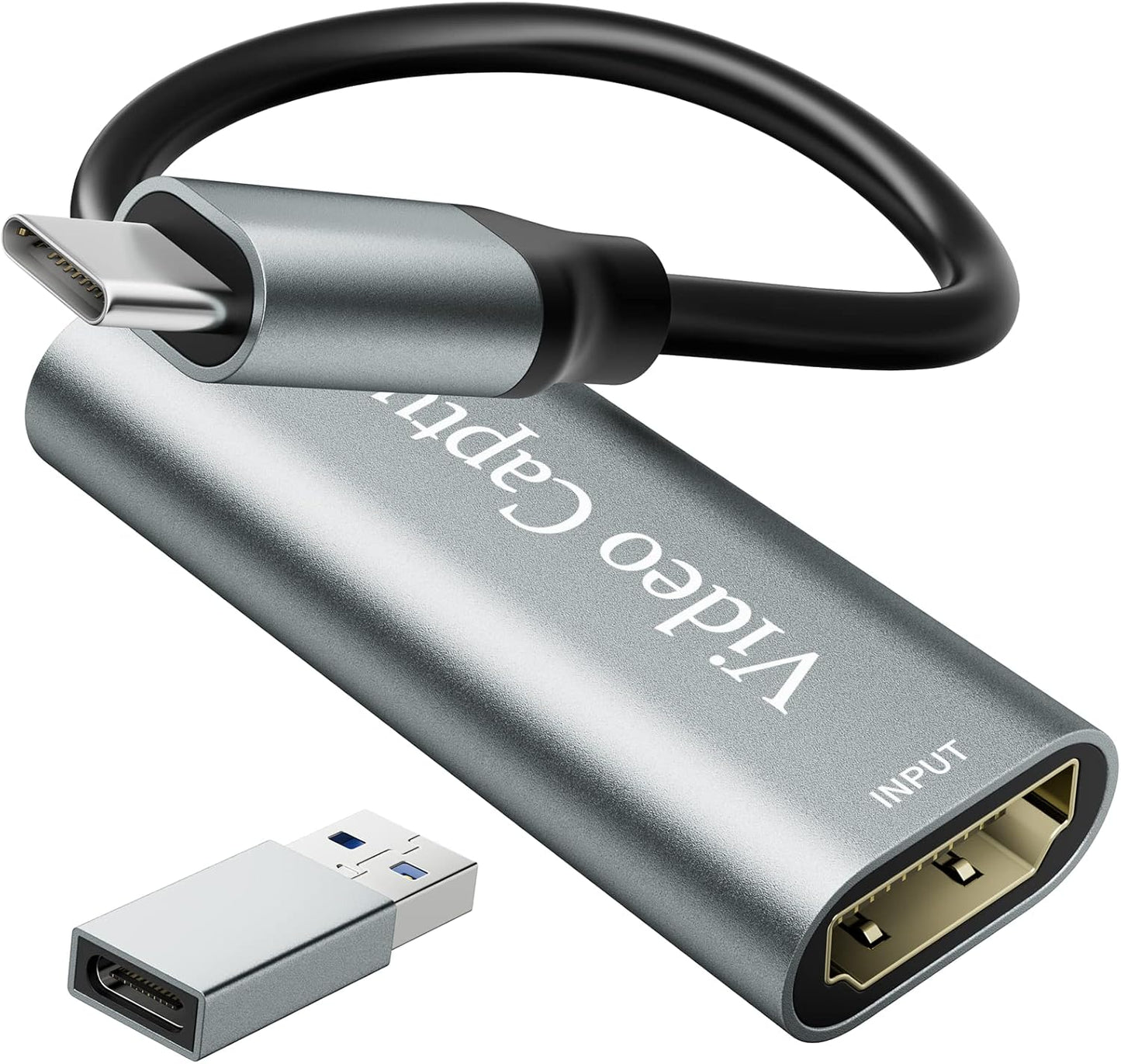
Video Capture Card, 4K HDMI Video Capture, USB 3.0 Game Capture Card, Video Capture Device Full HD 1080p 60FPS for Live Streaming, Work with PS4/PS5/Xbox/PC/Mac Linux Android Windows 10/11
Video Capture Card, 4K HDMI Video Capture, USB 3.0 Game Capture Card, Video Capture Device Full HD 1080p 60FPS for Live Streaming, Work with PS4/PS5/Xbox/PC/Mac Linux Android Windows 10/11
Regular price
$30.38 USD
Regular price
Sale price
$30.38 USD
Shipping calculated at checkout.
Quantity
Couldn't load pickup availability
About This
- 4K HDMI Game Capture Card: Built with super performance chip supports up to 4K60Hz HDMI input and make video high-intensity display and vivid picture quality. Compatible with any 3rd party software, like Twitch, YouTube, OBS, etc. Suitable for live streaming, gaming broadcast, video recording, conference rooms, etc
- HD 4K60fps Signal Loop Out: The Video capture card supports maximum HDMI output resolution up to 4K@60fps and record 1080P@60fps videos through USB 3.0 port. It enables you to capture video & audio signals simultaneously and output clear image quality without frame lag
- Wide Compatibility: Working with Windows, Android, Mac, LINUX, the Capture Card can easily connect multiple devices, such as Game console, DVD, digital audio, TV, set-top box, DV, camcorder etc., and enable you to stream videos on Twitch, YouTube, OBS, Potplayer, VLC with your gameplay
- Plug and Play: The Game Capture Card is easy to use and does not need to install any driver. You can take advantage of the functions built into the current software to get a seamless experience and use any third party software to capture or stream your HD games, or other HD video sources. The capture card for streaming works great for recording gameplay
Overview
- Brand : VIXLW
- Hardware Interface : HDMI, USB 3.0
- Video Capture Resolution : 4K@60fps
- Operating System : Android,Linux,Mac,Windows 10, Linux
- Recommended Uses For Product : Video Recording
- 1. Open OBS, create a new source under Sources by clicking "+", select "Video Capture Device", name it, then set
- Device: USB3.0 Video; Audio Output Mode: Capture Mode Only; Use custom audio device: Digital Audio Interface (USB 3.0 Audio)
- 2. In OBS settings → Audio
- Disable all Global Audio Settings except Mic/Auxiliary Audio; Set Mic/Auxiliary Audio to Digital Audio Interface (USB 3.0 Audio)
- 3. Under the Audio tab
- Right-click Mic/Auxiliary Audio → Advanced Audio Properties → Set Audio Monitoring to "Monitor Only (Mute Output)"
- 4. In PC settings → System → Sound
- Set Input to Laptop Microphone; All Sound Devices → Input Devices → Digital Audio Interface. Ensure it is NOT set to default. All Sound Devices → Input Devices → Laptop Microphone. Ensure it IS set to default.
- 5. In Discord
- If prompted to switch audio device, choose "don't switch"; User Settings > Voice & Video > Input > Laptop Microphone; User Settings > Voice & Video > Output > Laptop Speakers.
- Previous page
- Recording and loop output
- YUY2 1080P 60PFS
Share