1
/
of
8
VIXLW
4K HDMI Capture Card for Streaming, Full HD 1080P 60FPS USB 3.0 Cam Link Game Audio Video Capture Card, Work with Camera/Nintendo Switch/Xbox/PS4/PS5/PC/OBS (Black)
4K HDMI Capture Card for Streaming, Full HD 1080P 60FPS USB 3.0 Cam Link Game Audio Video Capture Card, Work with Camera/Nintendo Switch/Xbox/PS4/PS5/PC/OBS (Black)
Regular price
$32.98 USD
Regular price
Sale price
$32.98 USD
Shipping calculated at checkout.
Quantity
Couldn't load pickup availability
About This
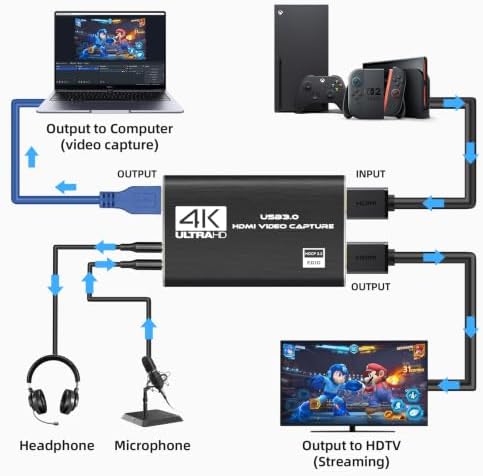
- 1080P HD High QualityCapture resolution up to 1080p for video source and it is ideal for all HDMI devices such as PS4, PS3, Xbox One, Xbox 360, Wii U, DVDs, DSLR, Camera, Security Camera and set top box.
- Plug and PlayNo driver or external power supply required, true PnP. Once plugged in, the device is identified automatically as a webcam. Detect input and adjust output automatically. Won't occupy CPU, optional audio capture. No freeze with correct setting.
- Compatible with Multiple Systemssuitable for Windows and Mac OS. High speed USB 3.0 technology and superior low latency technology makes it easier for you to transmit live streaming to Twitch, Youtube, Facebook, Twitter, OBS, Potplayer and VLC.
- HDMI LOOP-OUTBased on the high-speed USB 3.0 technology, it can capture one single channel HD HDMI video signal. There is no delay when you are playing game live.
- Support Mic-in for CommentaryKedok capture card has microphone input and you can use it to add external commentary when playing a game. Please note: it only accepts 3.5mm TRS standard microphone headset.
Overview
- Brand : VIXLW
- Hardware Interface : USB 3.0
- Video Capture Resolution : 1080p
- Operating System : Windows and Mac OS
- Recommended Uses For Product : Video Recording, Image Capture
- 1. Open OBS, create a new source under Sources by clicking "+", select "Video Capture Device", name it, then set
- Device: USB3.0 Video; Audio Output Mode: Capture Mode Only; Use custom audio device: Digital Audio Interface (USB 3.0 Audio)
- 2. In OBS settings → Audio
- Disable all Global Audio Settings except Mic/Auxiliary Audio; Set Mic/Auxiliary Audio to Digital Audio Interface (USB 3.0 Audio)
- 3. Under the Audio tab
- Right-click Mic/Auxiliary Audio → Advanced Audio Properties → Set Audio Monitoring to "Monitor Only (Mute Output)"
- 4. In PC settings → System → Sound
- Set Input to Laptop Microphone; All Sound Devices → Input Devices → Digital Audio Interface. Ensure it is NOT set to default. All Sound Devices → Input Devices → Laptop Microphone. Ensure it IS set to default.
- 5. In Discord
- If prompted to switch audio device, choose "don't switch"; User Settings > Voice & Video > Input > Laptop Microphone; User Settings > Voice & Video > Output > Laptop Speakers.
- VIXLW: Connecting Infinite Possibilities
- Users usually encounter problems such as image delays and impaired image quality during video transmission and conversion. To solve these problems, VIXLW was born with a passion for video technology, determined to create the ultimate experience of video capture cards and converters.
- Video Converter
- Capture Card
- Video Capture Card
- HDMI Capture Card
- Previous page
Share